Lost Laptop, Lost Data? Why Encryption Decides a Breach
A lost practice laptop is only an ICO-reportable breach if the data was readable. Here is why device encryption is the line, and how to check yours.
- Security
- Data Protection
- Devices
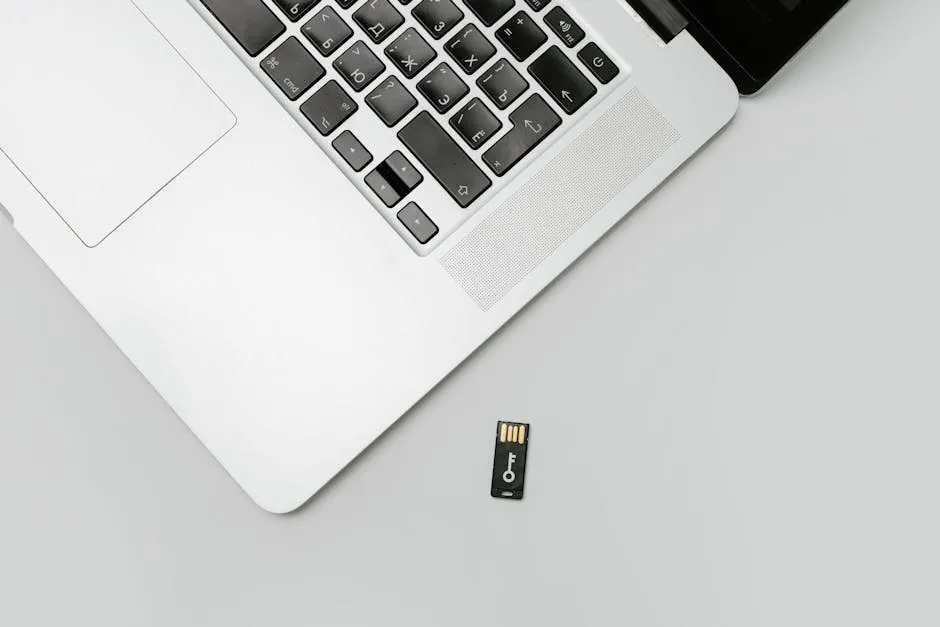
A laptop goes missing. Maybe it was left on a train after a client visit in Wrexham, maybe it was taken from a car. For an accountancy practice, the first question is not “how much did the laptop cost”. It is “what was on it, and could anyone read it”.
That second question decides almost everything that follows. A lost device with readable client data is, in many cases, a personal data breach you may have to report to the ICO, with all the time, anxiety and reputational cost that brings. A lost device whose data is unreadable is, in most cases, just a lost device. The thing standing between those two outcomes is encryption.
Why this matters more for accountancy practices
Your staff carry some of the most sensitive data there is. Tax references, National Insurance numbers, payroll figures, bank details, identity documents gathered for anti-money-laundering checks. With hybrid working and client visits now normal, a lot of that data travels on laptops that leave the office.
That is not a problem in itself. It is how modern practices work. But it does mean the humble laptop is one of the most exposed places client data sits. A device left in a meeting room, a bag taken from a passenger seat, a machine that quietly walks out of a shared office. None of these are exotic. They are the everyday ways data goes missing.
So the sensible assumption is simple: any practice laptop could one day be lost or stolen. The work is making sure that if it is, the data on it cannot be read.
What encryption actually does
Full-disk encryption scrambles everything stored on the laptop’s drive. Without the right key, the contents are meaningless, even if someone removes the drive and plugs it into another computer.
The two you will meet most often are:
- BitLocker, built into business versions of Windows.
- FileVault, built into macOS.
Both are designed to do the same job: keep the data unreadable to anyone who does not have the key. When encryption is on and set up properly, a thief gets a laptop they can wipe and resell, not a filing cabinet of your clients’ financial affairs.
This is exactly why encryption sits so close to your duties under UK GDPR. The law expects you to protect personal data with appropriate technical measures, and our guide to what ICAEW and your clients expect from your IT walks through how those obligations connect. Encryption is one of the clearest, most cost-effective ways to meet them on the devices that travel.
”On by default” is not the same as “on”
Here is the trap. Many people assume their laptops are encrypted because the feature exists, or because someone set it up once, on some of the machines, a while ago.
Assumption is not assurance. In practice we regularly see a mix across a single practice:
- Newer laptops encrypted, older ones never switched on.
- A main device covered, but a spare or “loaner” left open.
- Personal laptops staff use for work that no one ever checked.
The only way to be sure is to verify it, device by device. On Windows that means confirming BitLocker is protecting the system drive. On a Mac it means confirming FileVault is turned on. If you cannot say, for every device that touches client data, that it is encrypted, then you do not yet know whether a lost laptop would be a breach or a non-event.
A short Practice IT Health Check is one straightforward way to get that answer across the whole practice at once.
The recent BitLocker disclosure: a reason to check, not to panic
There has been a recently disclosed weakness affecting BitLocker on Windows. The important context for a busy practice partner is this: the attack needs physical access to the machine. Someone has to physically handle the device, not reach it over the internet. For a laptop sitting in your office that is a meaningful barrier. For a laptop that travels, it is a fair prompt to tighten things up.
You do not need to understand the technical detail. What matters is the practical response, which is good advice for device encryption generally and stays true whatever the next disclosure turns out to be:
1. Add a startup PIN
A startup PIN is a short code entered the moment the laptop powers on, before Windows loads. It means the drive cannot be unlocked by the hardware alone, which closes off this kind of physical-access weakness. For laptops that leave the building with client data, it is a sensible extra layer.
2. Store recovery keys properly
Every encrypted device has a recovery key, a long code used to get back in if normal sign-in fails. That key is effectively a master key to the data. It must be stored somewhere secure and access-logged, such as your Microsoft 365 or Entra ID account, or a proper password vault. It must never be emailed around or written on a sticky note left with the laptop. A recovery key stored next to the device undoes the protection entirely.
3. Keep an eye on updates
Where a flaw like this is concerned, the lasting fix is the vendor’s patch. Keeping devices updated, and having someone whose job it is to watch for and apply those updates, is part of keeping the whole practice maintained rather than a one-off task.
Encryption is one layer, not the whole job
Encryption protects data on a device that has gone missing. It does not protect you from someone who already has a valid login, and it is not a substitute for the rest of your defences. It works alongside:
- Strong sign-in and multi-factor authentication, so a stolen password does not open the door.
- Reliable, tested backups, so a lost or wiped device does not also mean lost work. Our guide to backing up your practice properly covers this.
- Sensible device and account hygiene, the wider ground covered by cyber security and Cyber Essentials.
Think of encryption as the safety net under one specific, very common risk. The laptop you can replace in an afternoon. The trust of a client whose tax affairs ended up readable in a stranger’s hands is far harder to rebuild.
The practical takeaway
Lost devices happen. They happen to careful, well-run practices. What separates a quiet internal note from a reportable breach and an awkward client conversation is almost always whether the data on the device could be read.
So the action is small and worth doing now:
- Confirm every practice device, including older and personal machines, is encrypted.
- Add a startup PIN to laptops that travel.
- Store recovery keys somewhere secure and access-logged.
- Keep devices updated.
Do not assume it is handled. Check that it is.
Frequently asked questions
If a staff laptop is lost but it was encrypted, do we still have to report it to the ICO?
Generally a lost or stolen device is far less likely to be a reportable personal data breach if the disk was fully encrypted and the encryption key was not stored on or with the device. When the data is unreadable to whoever finds it, the risk to the people whose data you hold is low. You should still record the incident internally and take advice, but strong encryption is what usually turns a serious breach into a manageable one. Always assess each case on its facts.
How do I know our practice laptops are actually encrypted?
Do not assume they are. On Windows you can check whether BitLocker is on for the system drive; on a Mac you can check that FileVault is turned on. The catch is that this needs checking on every device, including older machines and any personal laptops staff use for work. A managed IT setup can report encryption status across all your devices centrally, so you are not relying on memory or guesswork.
What is a startup PIN and do our laptops need one?
A startup PIN is a short code entered when the laptop first powers on, before Windows loads. It adds a layer on top of disk encryption so the drive cannot be unlocked by the hardware alone. For laptops that leave the office with client tax or payroll data on them, a startup PIN is a sensible extra step and is one of the recommended protections against recent disk encryption weaknesses.
Where should our BitLocker or FileVault recovery keys be stored?
Recovery keys should be held somewhere secure and access-logged, such as your Microsoft 365 or Entra ID account or a proper password vault, never emailed around or written on a note left with the laptop. A recovery key stored next to the device defeats the point of encryption. Getting recovery key storage right is part of any sensible device security review.
Want this checked for your own practice?
Book a free Practice IT Health Check, a plain-English, no-obligation review of where your IT stands.
Book your free Health Check